Getting Started
Before you can start scheduling, you need to add the following:
- Locations, Positions, and Shift Templates
- Employees
- Set Employee Availability
You want to set up the background information for your company first so that adding employees can occur as smoothly as possible.
Positions and Locations are used for managing employee permissions and filtering the schedule.
Shift Templates are your commonly used shift times and make creating schedules much faster.
Layout and Navigation
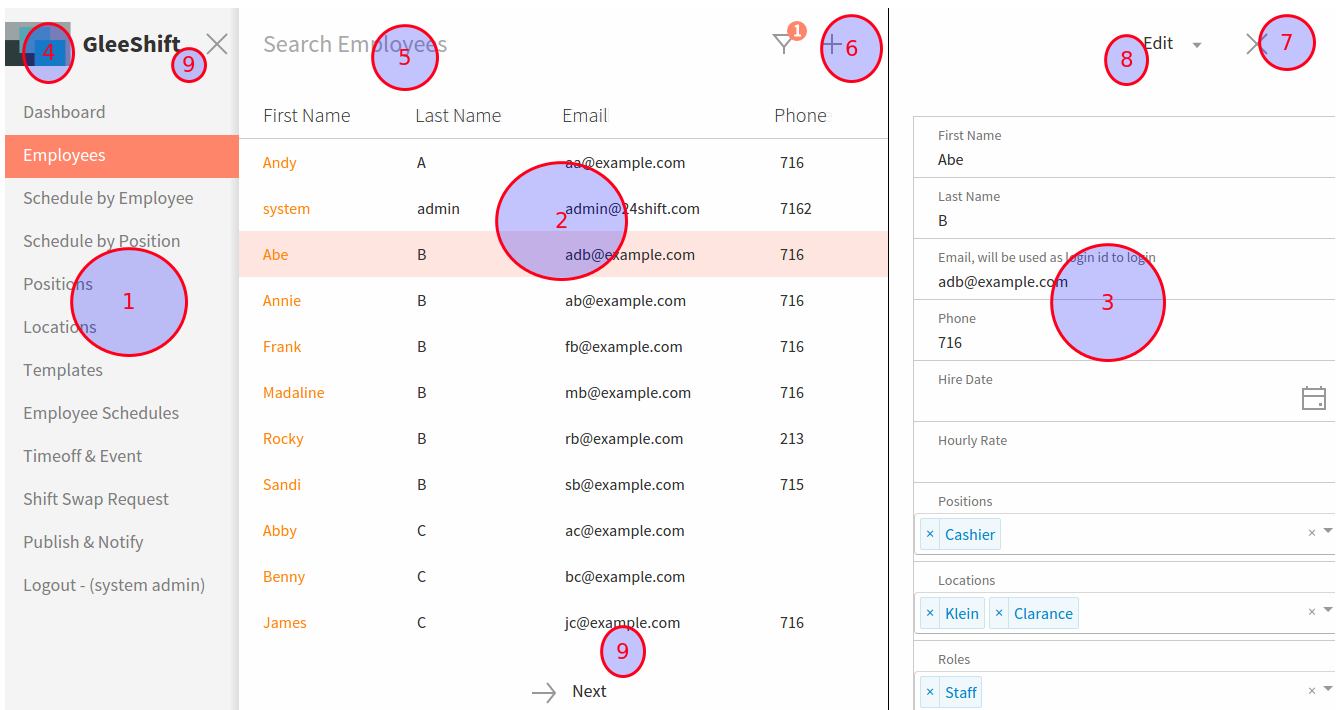
After you login, you will see the screen as below.
The left panel is the main menu panel (1). It can be closed if you need more space on the right side. Click on the Gleeshift logo icon in the center panel to re-open it (4).
The center panel is the list (table) panel (2). It shows lists of items with the search box and toolbar in the top.
The right panel is the detail panel (3); where you can add or edit/view a detail of the record. It can be closed as well.
Adding Locations
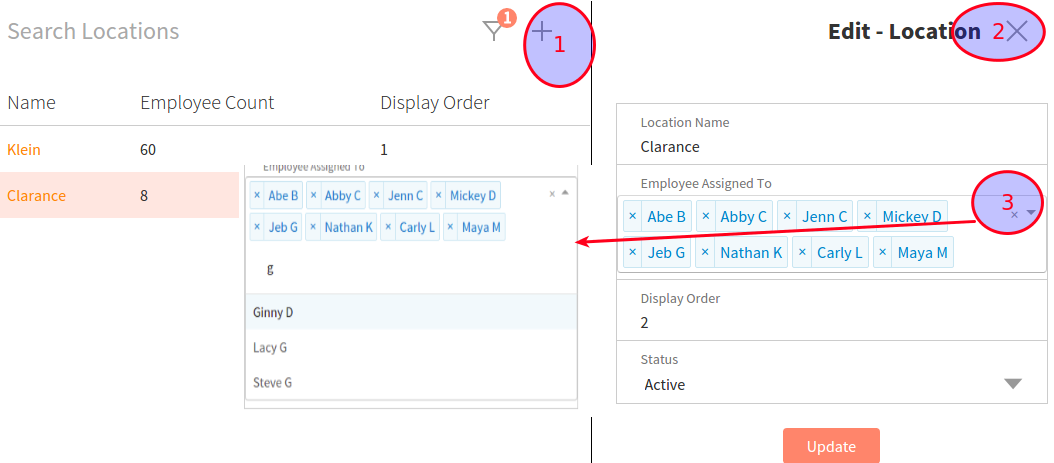
To add a location, click on the Locations link on the left-side menu. On this page you can manage all of the locations that are part of your schedule as well as see the number of employees at each location.
Click the + Icon at the top right to add a new location. There is also a option to Search Locations at the top of the page.
Click the link on each location name to open the edit location page. You can assign employees to this location. To delete a location, set the Status to Delete in the edit page.
Adding Positions
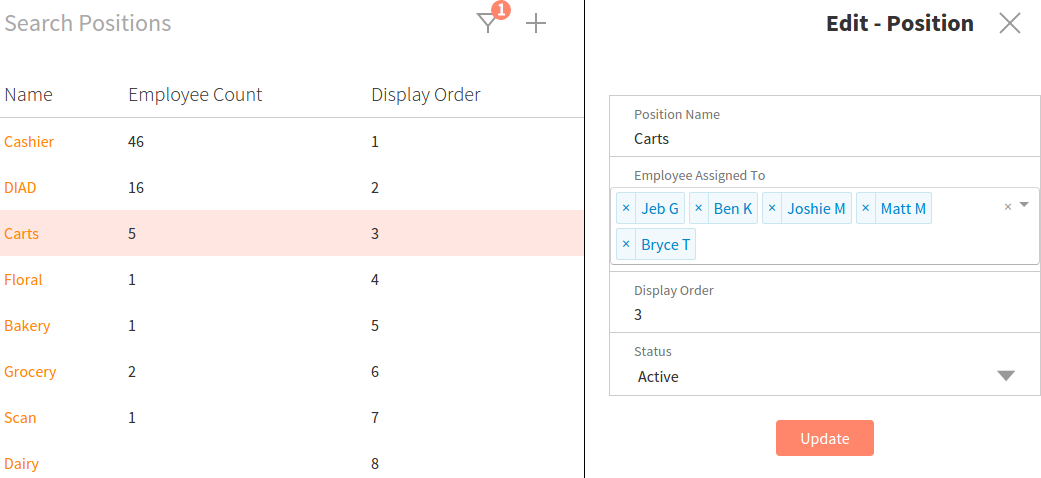
To add a Position, click on the Positions link on the left-side menu. On this page you can manage all of the positions that are part of your schedule as well as see the number of employees at each position.
Click the + icon at the top right to add a new position. There is also a option to Search Positions at the top of the page.
Click the link on each position name to open the edit position page. You can assign employees to this position. To delete a position, set the Status to Delete on the edit page.
Adding Shift Templates
To add a Shift Template, click on the Templates link on the left-side menu. On this page you can manage all of the shift templates that are part of your schedule. When you make the schedule, you can select the shift from the shift template you created, instead of typing the start and end time each time.
Click the + icon at the top right to add a new shift template. There is also a option to Search shift template at the top of the page.
Click the link on each Start At to open the edit shift template page. The total hours must be set accurate; it is used in calculate the total hours for employees and positions. The Display order is used in the schedule page and employee availability page. We advise setting the same order as the Start At time. To delete a shift template, set the Status to Delete on the edit page
When adding times, be sure to include AM or PM.
Displaying the order is also important since there may be many different shifts. You can create a system to manage times,
such as grouping shifts starting from 6am to display numbers 1-10