My profile
You can update your own information, set your work availability, and change your password.
Update your profile
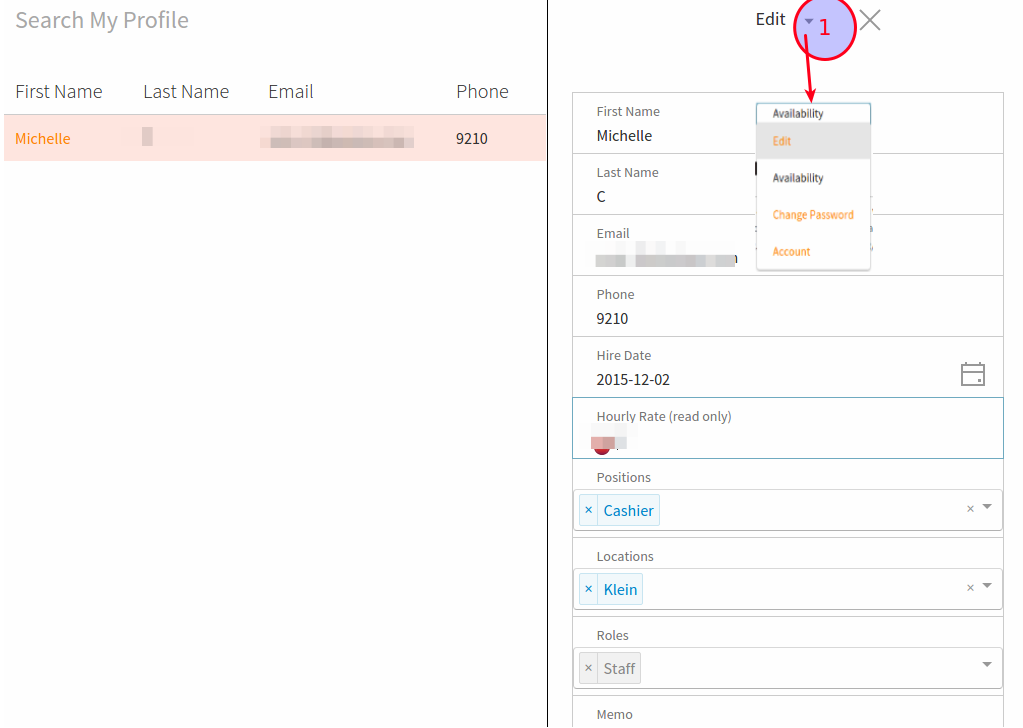
To update your own profile, click on the My Profile menu on the left-side menu. Click on the link on your name; you will see the info below.
Set Employee Availability
On the my profile edit page (see above), click on the caret beside Edit and a dropdown menu will appear. Select Availiability.
The employee availability page will show as below:
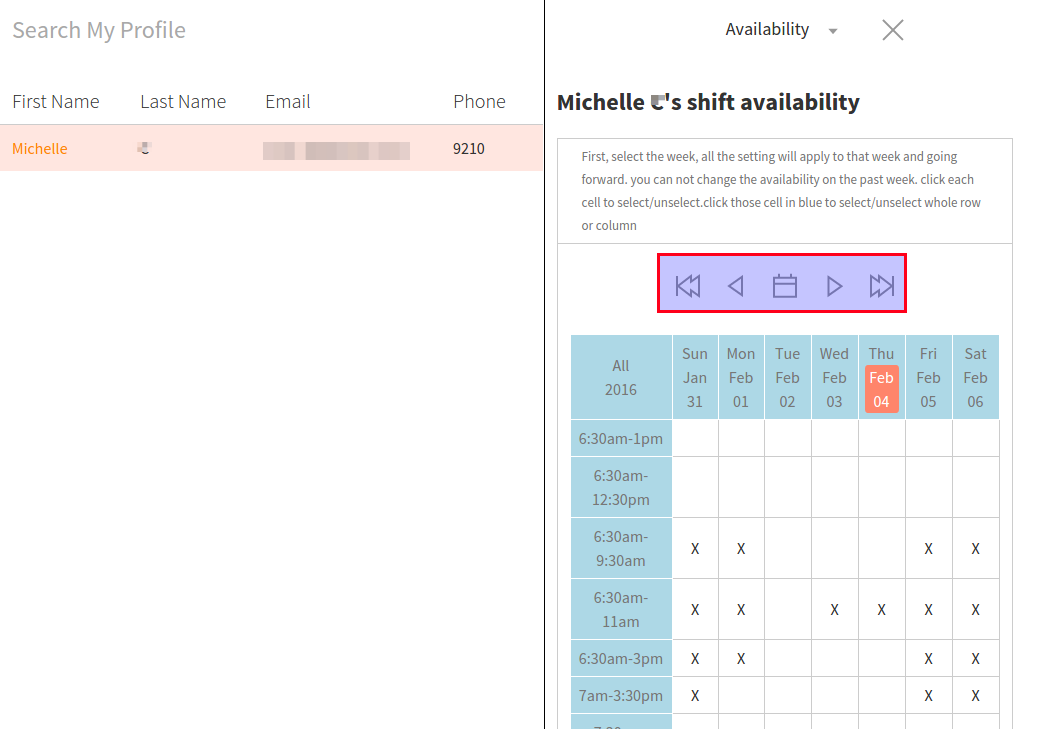
The table and toolbar will appear. The Columns are from Sunday to Saturday. The Rows are those shift templates your manager has created.
In order to mark availability, click on the box that corresponds with the correct day and time. To select the entire row or column, click on the day or time shift of that column or row. To deselect, simply click the box again.
Once you are done selecting your availability for the week, click the Update at the bottom in order to save. Your availability for that week will also carry over to future weeks; in order to change that, simply move between weeks by clicking on the arrow buttons (the tool bar) at the top of the page.
You can also save your availability for future dates by using the arrow buttons.
Reset password
In the my profile edit page (see above). click on the caret beside the Edit and a dropdown menu will appear. Select Change password.
The Change password panel will show. Follow the screen to change the password.