Scheduling Shifts
First, make sure that you have your Locations, Positions, Shift Templates, and Employees inputted into the system. NOTE: Employees must have their availability completed in order to be scheduled.
There are two ways to schedule shifts:
- Scheduling by Employee
- Scheduling by Position
Scheduling by Employee
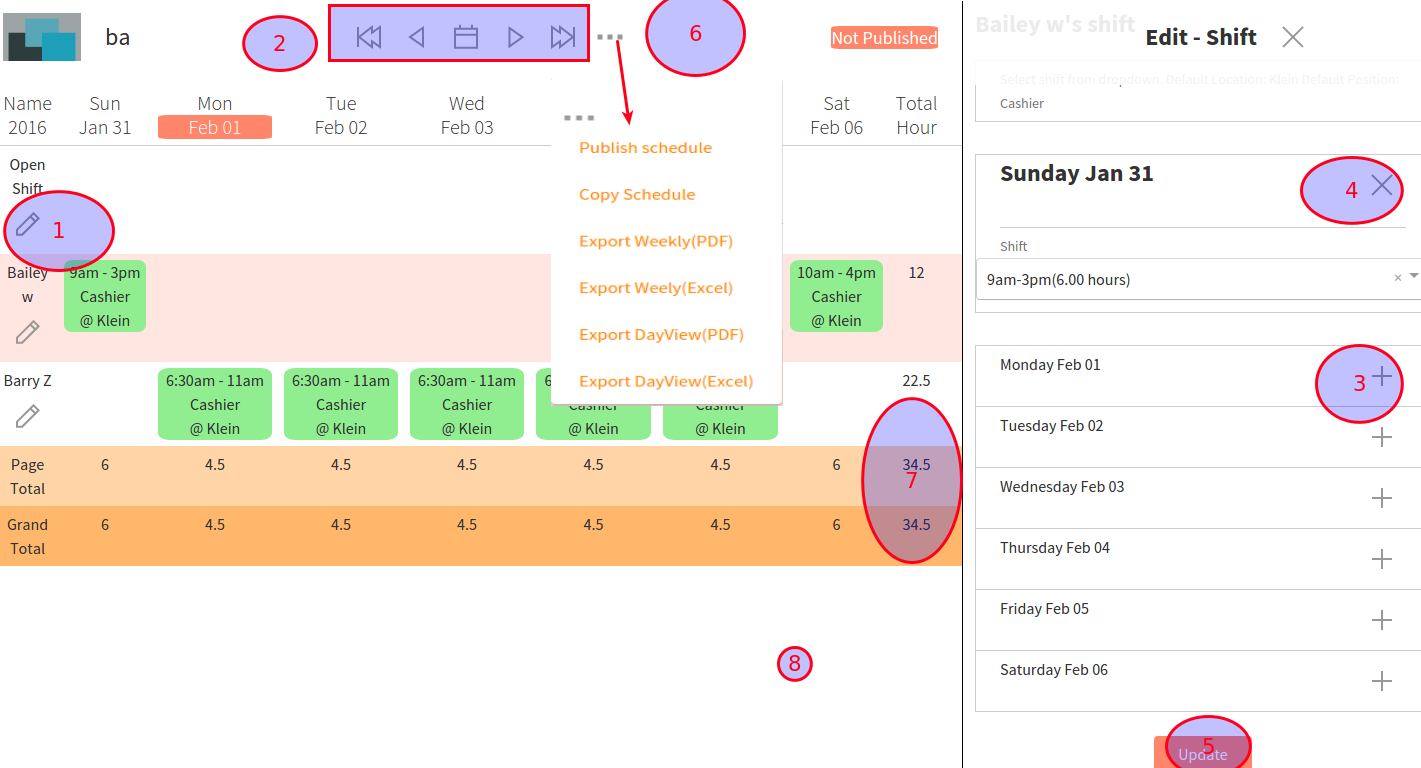
Click the Schedule by Employee link on the left-side menu. On this page, you can see and manage each employee's shifts for one week. In order to view past or future weeks, click on the toolbar (arrows or calendar icon) at the top of the page.
Use the Search Shift in the top to filter the employee by part of the employee name.
To add to new shift to an employee:
- Select an employee by clicking on the editing icon (pencil) under their name. This opens a new right-side menu with the week's days.
- Add a new shift by clicking the + button on the right of the selected day. A drop down menu appears with a position and shift option.
- The only shifts that are displayed are the employee's available shifts.
This makes it much easier to add shifts to the schedule - When you are done, click the Update button.
At the bottom of the page, you can see the number of hours per day for that page as well as the grand total number of hours for that week.
Scheduling by Position
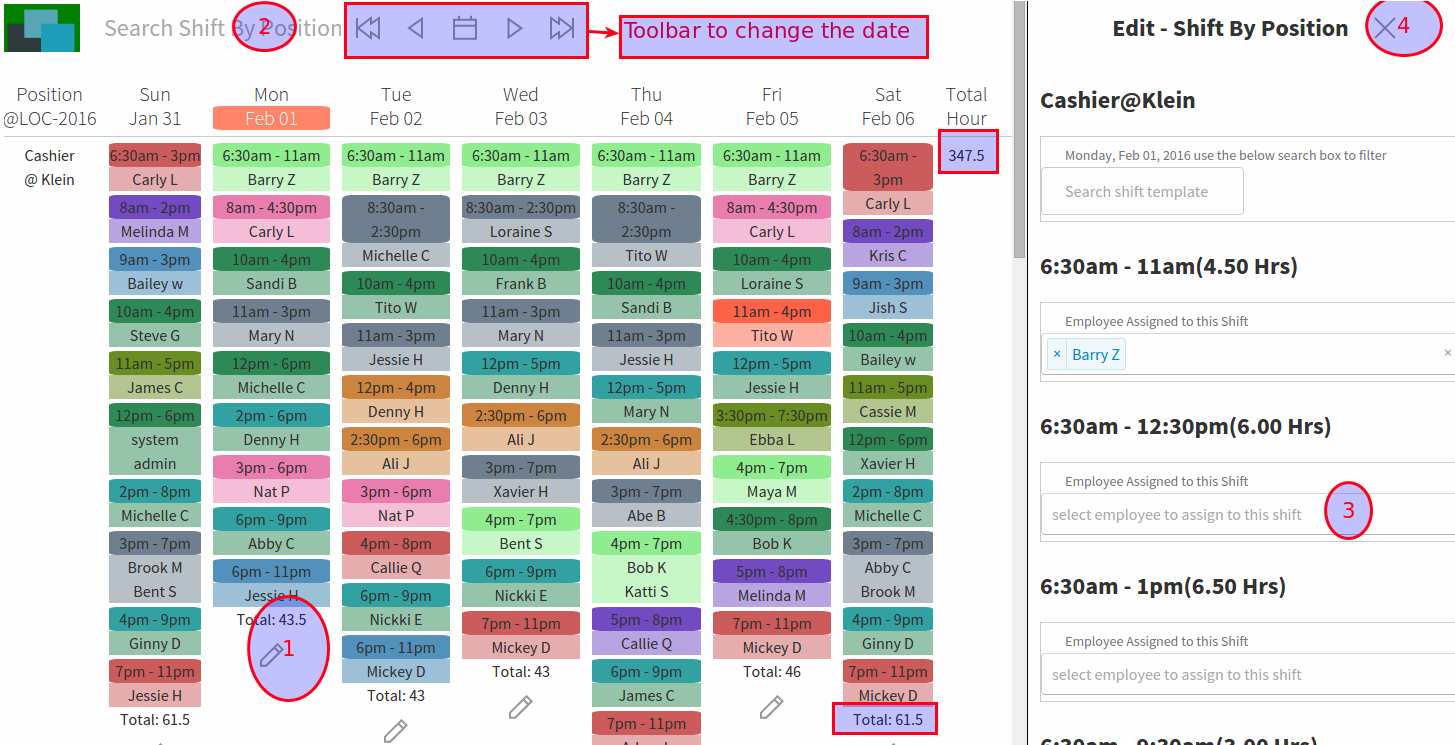
Click on the Schedule by Position link on the left-side menu. On this page, you can see and manage each position's shifts for one week. In order to view past or future weeks, click on the toolbar (arrows or calendar icon) at the top of the page. (same as Scheduling by Employee) Use the Search Position in the top to filter the position by typing part of the position name.
To add to new shift to an position:
- Select a day and position by clicking on the editing icon (pencil) that corresponds. This opens a new right-side menu with all of the shift templates created.
- Add a new shift by finding the needed shift time. There is a Search shift template box at the top to help find shifts.
- To place an employee at a shift, click the box underneath the shift time to select an employee.
Only employees that are available are displayed.
This makes it much easier to add shifts to the schedule - When you are done, click the Update button.