Swapping Shifts
Swapping shifts is primarily done by employees. However, managers can make a swap request on behalf of an employee.
Add swap
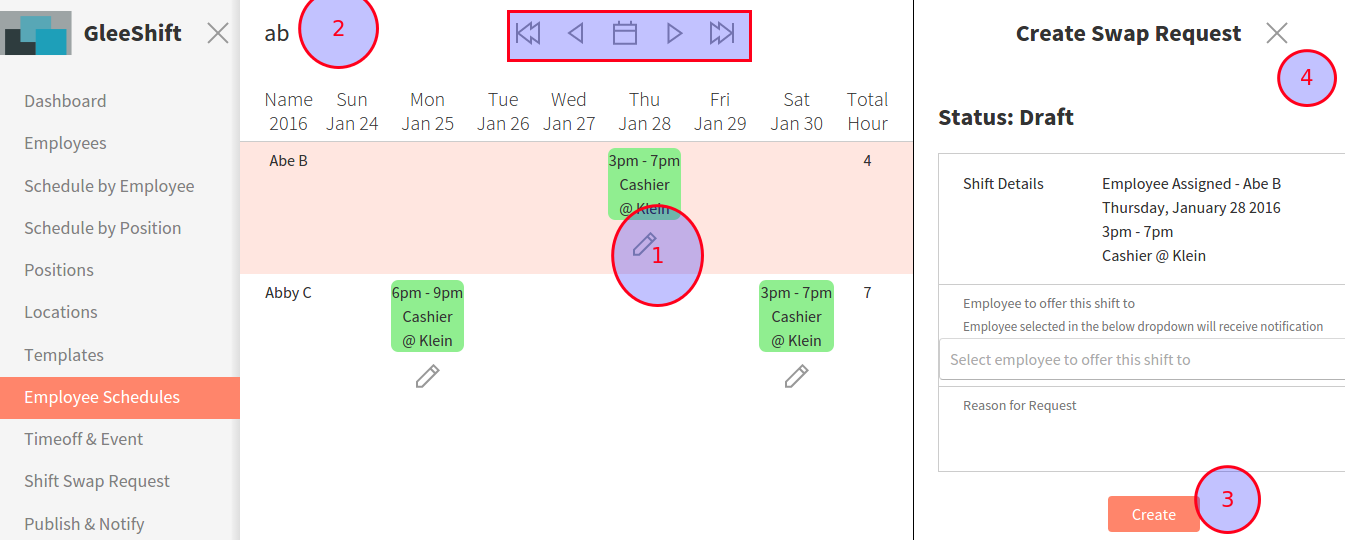
To do so, go to the Employee Schedules link on the left-hand side. There, you can see all of the employees that are scheduled for a selected week. To create a shift swap, select the shift by clicking the edit button (shaped like a pencil). There, a new panel appears on the right-hand side. When finished, click the Create button. This will also send an email to employee selected and the manager for approve (if auto approve is off).
Approve, Reject, or Cancel
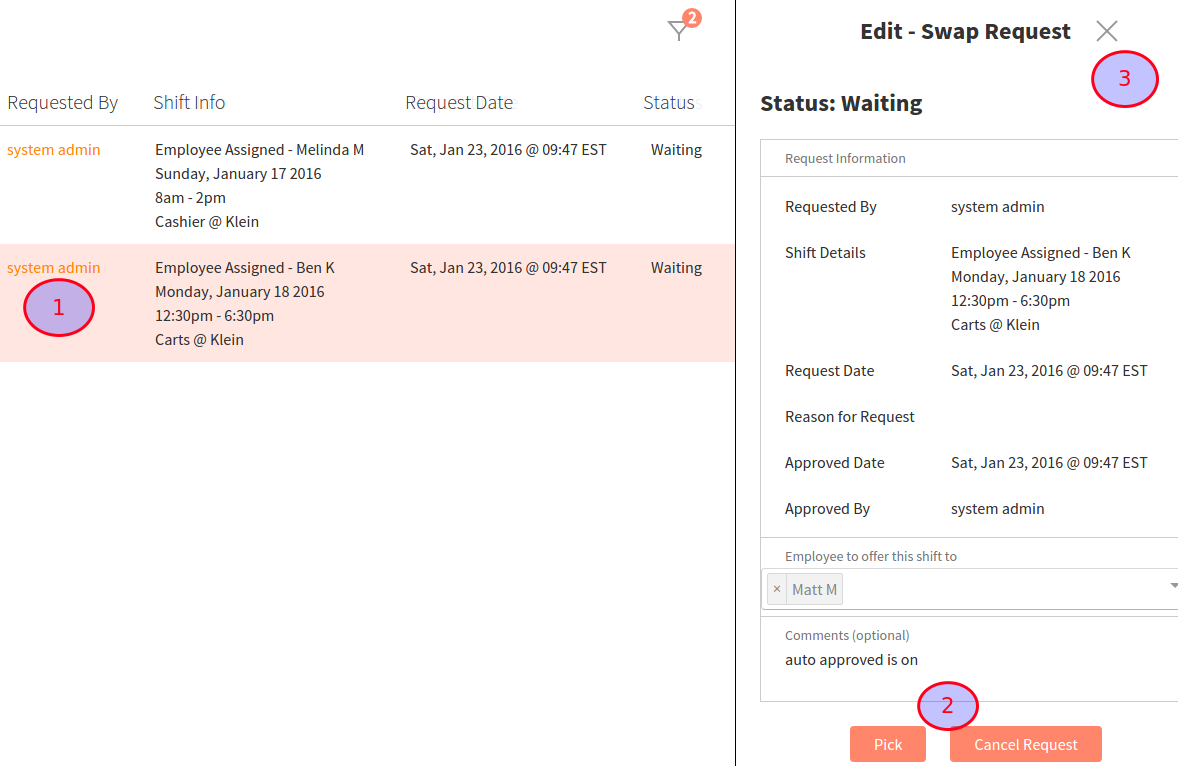
In the account page you can set auto approve swap request to true, otherwise the newly created swap request status is pending and the manager has to approve it. To do so, go to the Shift Swap Request link on the left-hand side. There, you can see all Swap Requests that are in the pending or waiting status.
Use the Search Swap request or Filter icon on the top right corner (besides + icon) to narrow the result.
Click on the link at Requested by column, There, a new panel appears on the right-hand side detailing the shift information and reason for the request. At the bottom, you can choose to approve, cancel, or reject the request depending on the current status of the request.